Migrating from PDM V2 to V3
If you’re moving from PDM V2 to V3, we strongly recommend using the automated migration process. It is the quickest and most complete way to transfer your existing data.
Full migration support is available if you need help. Please contact PDM Support for more information.
Before you migrate
Make sure all devices using PDM App are running the latest supported version before migration.
You can check for updates through the App Store or Google Play Store on each device.
If you’re unsure whether your devices are ready for migration, please contact PDM Support.
Automated or manual migration?
There are two ways to move from V2 to V3:
Automated migration
Automated migration is the recommended option.
It allows significantly more of your existing V2 data to be transferred into V3 and reduces the amount of information that needs to be recreated manually.
Automated migration is:
- more complete
- supported by the PDM team
- free of charge
- requires less manual setup
Manual migration
Manual migration is also possible, but it is more limited.
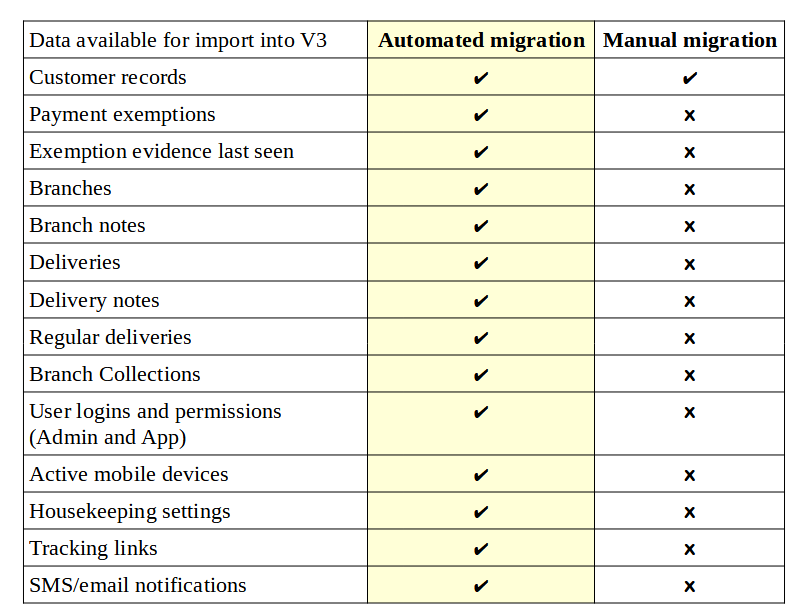
Only customer records can be imported automatically. Other information will need to be recreated manually in V3.
Additional support may be chargeable.
For this reason, we strongly recommend automated migration wherever possible.
The migration process
The migration process is straightforward:
- Check your devices
Make sure all PDM App devices meet the current migration requirements. - Book a demo and walkthrough
Before migration, we’ll arrange a walkthrough of PDM V3 with your team. This gives you the opportunity to see how your existing workflows will work in the new system and ask any questions specific to your organisation. -
Arrange your migration
Once you’re happy with the new workflows, we’ll agree a suitable migration date with you. - Your data is migrated
PDM transfers the eligible data from your V2 account into V3.
Migrations are usually carried out outside normal working hours to reduce the likelihood of users being logged in during the process, helping the migration complete successfully.
In most cases, we can migrate one branch per night. If your organisation has multiple branches that share drivers or other resources, we’ll discuss the migration order with you during your demo and workflow meeting. - Review your migrated data
Check your information in PDM Web and confirm everything is ready for use. - Start using V3
Once you’re ready, your team can begin using PDM Web and PDM App.
The Migration Hub, tutorials and training videos are available if you need help getting familiar with the new system.
What data will be migrated?
Automated migration transfers significantly more information than a manual migration.
The comparison below shows which V2 data can be moved into V3 using each method:
If you have any questions about how a specific type of data will be migrated, please contact PDM Support before your migration date.
Why migrate to V3?
Most customers choose to migrate to V3 to take advantage of features such as:
- improved integrations and barcode scanning support
- more flexible customer and user management
- improved order and task management
- better traceability and order history
- enhanced reporting
- live courier tracking
For a full overview, see What are the main differences between V2 and V3?
Need more help?
Visit the Migration Hub for additional help, including:
- V2 to V3 comparison guides
- migration FAQs
- training videos
- PDM Web and PDM App tutorials
If you need help arranging your migration, please contact PDM Support.