Customers
In the Customers screen, you can view all of your existing customers, create new customers as well as create new jobs (tasks).
When you first open the Customer screen, you’ll be given an immediate overview of all your customers, including their name, address, ID, and tags.
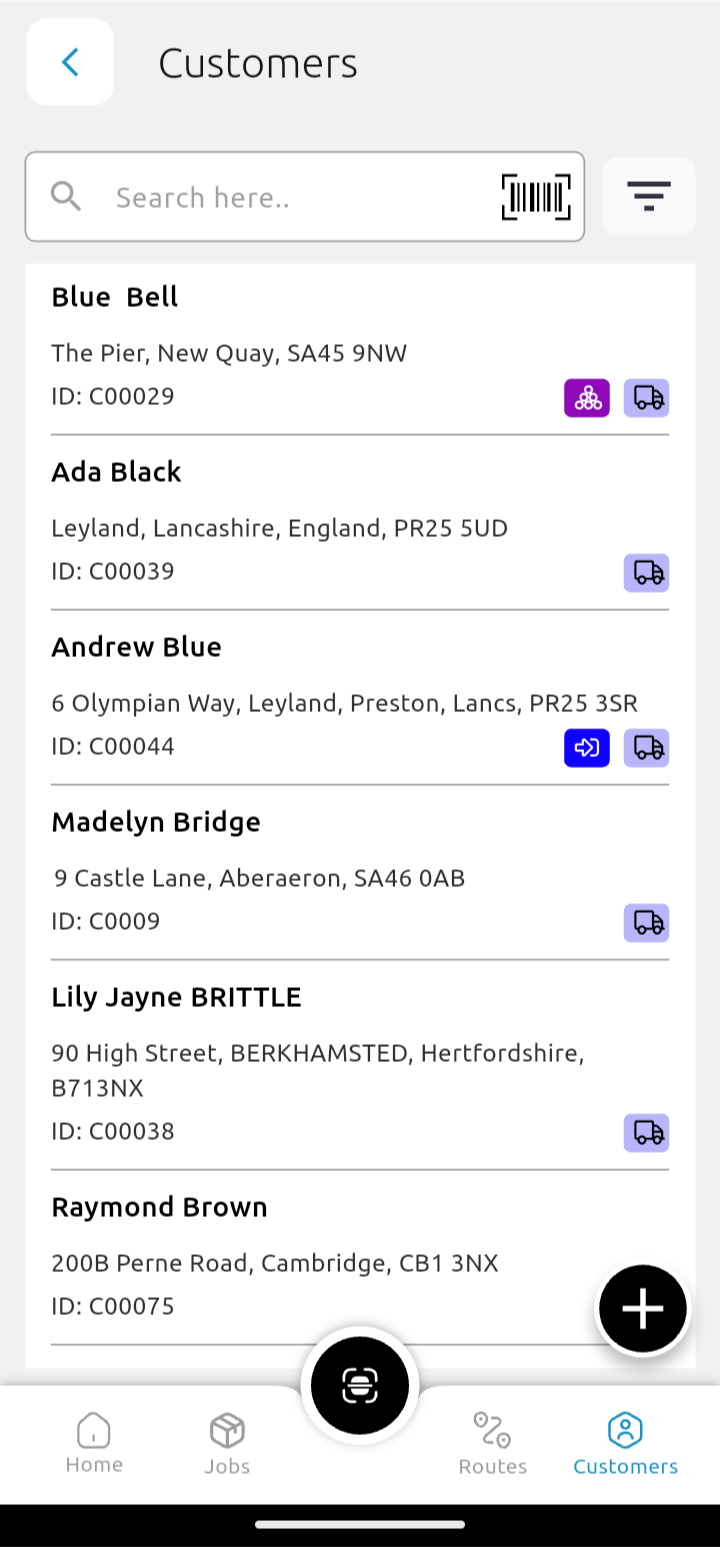
Tap on the customer record to see a list of recent orders.
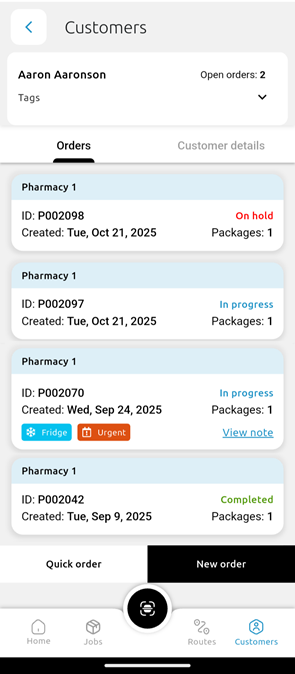
Here you will see:
- Pharmacy name: the entity managing the order
- ID: order ID that is automatically assigned by the system
- Status: In progress, Completed, or On hold
- Created: date the order was added to the system
- Packages: the number of packages associated with the order
- Tags associated with the order (for example, Fridge or CD)
- View note: a note associated with the order
To view the customer details tap the Customer details tab.
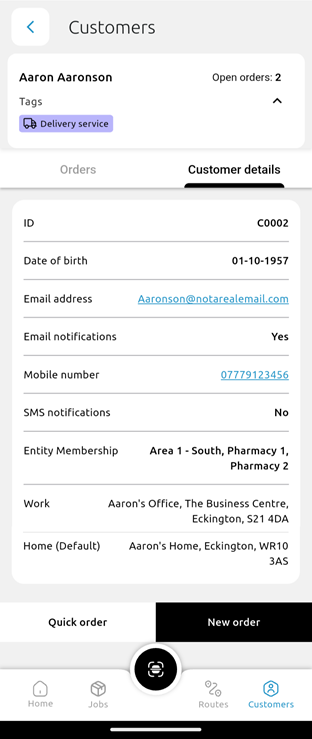 Here you can see the following customer information:
- Name
- Number of open orders
- Tags
- ID (automatically assigned)
- Date of birth (if entered on customer record)
- Gender (if entered)
- Mobile number (if entered)
- Email and SMS notification status
- Entity membership
- All addresses on file
- +New Order button
- +Quick Order button
If you need to edit a customer record, just log into PDM Web to make the needed changes.
Within the customer record, you have 2 optins to create a new order:
+Quick order or
+New order
The +Quick order button automatically creates an order with a task based on the saved default information (which can be set on PDM Web). These defaults can include:
- customer tags
- delivery address
- order tags
- saved order and/or task notes.
If a default is missing, you'll be prompted to enter the missing information before proceeding.
Click Save when you're done.
Tapping +New order allows you to view and add extra information like:
- Customer payment status
- Which entity will be managing the order
- Number of packages
- Order note
- Tags (CD or Fridge, for example)
- Options to change and add...
- the delivery address
- who the delivery is to be completed by
- target date and time for the delivery
- delivery note
- delivery tag
- more tasks to be completed (i.e. Welfare check)
Where a customer has default order information saved, this will be automatically filled in.
Click Save at the top right of the screen to save the order.