Routes
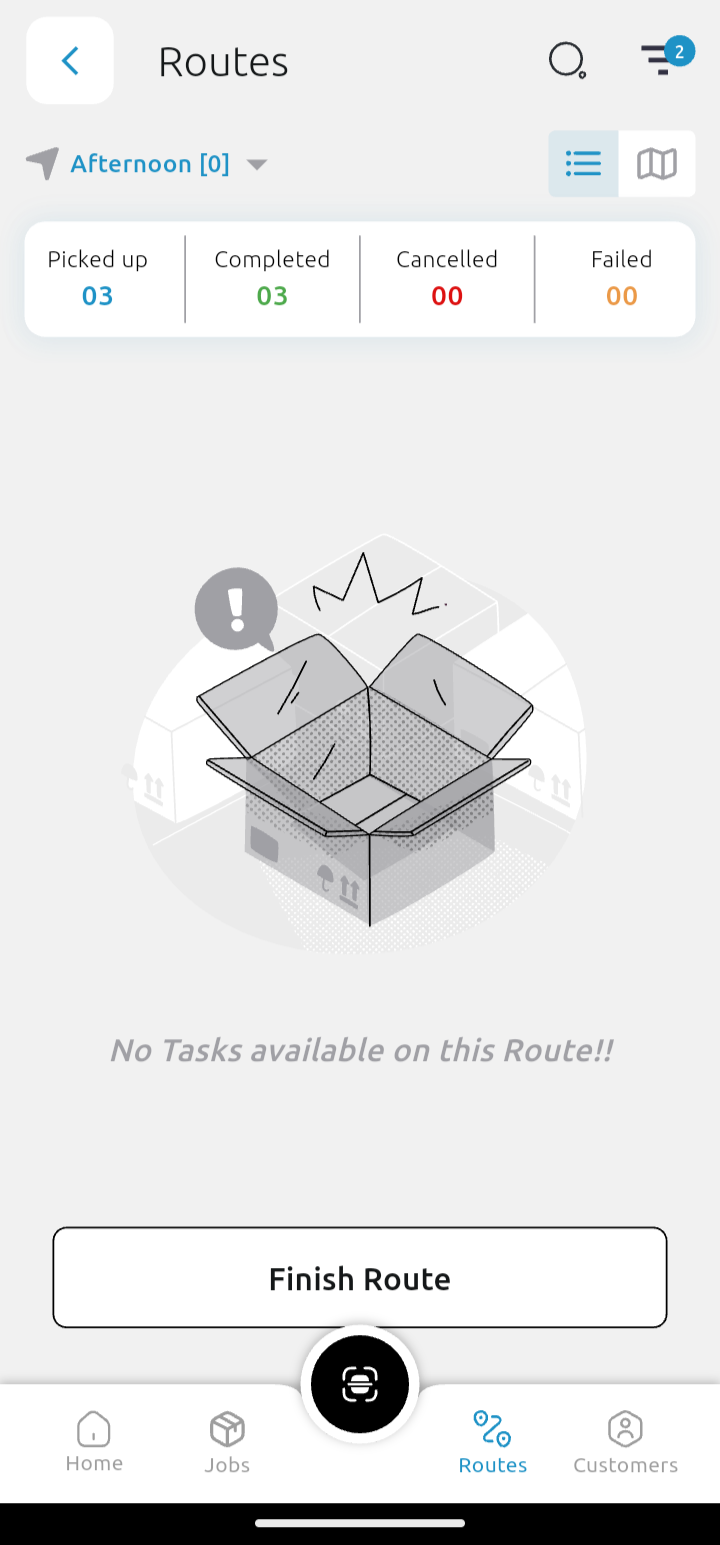
In the Routes screen, you can see jobs (also known as tasks) that are on a route assigned to you.
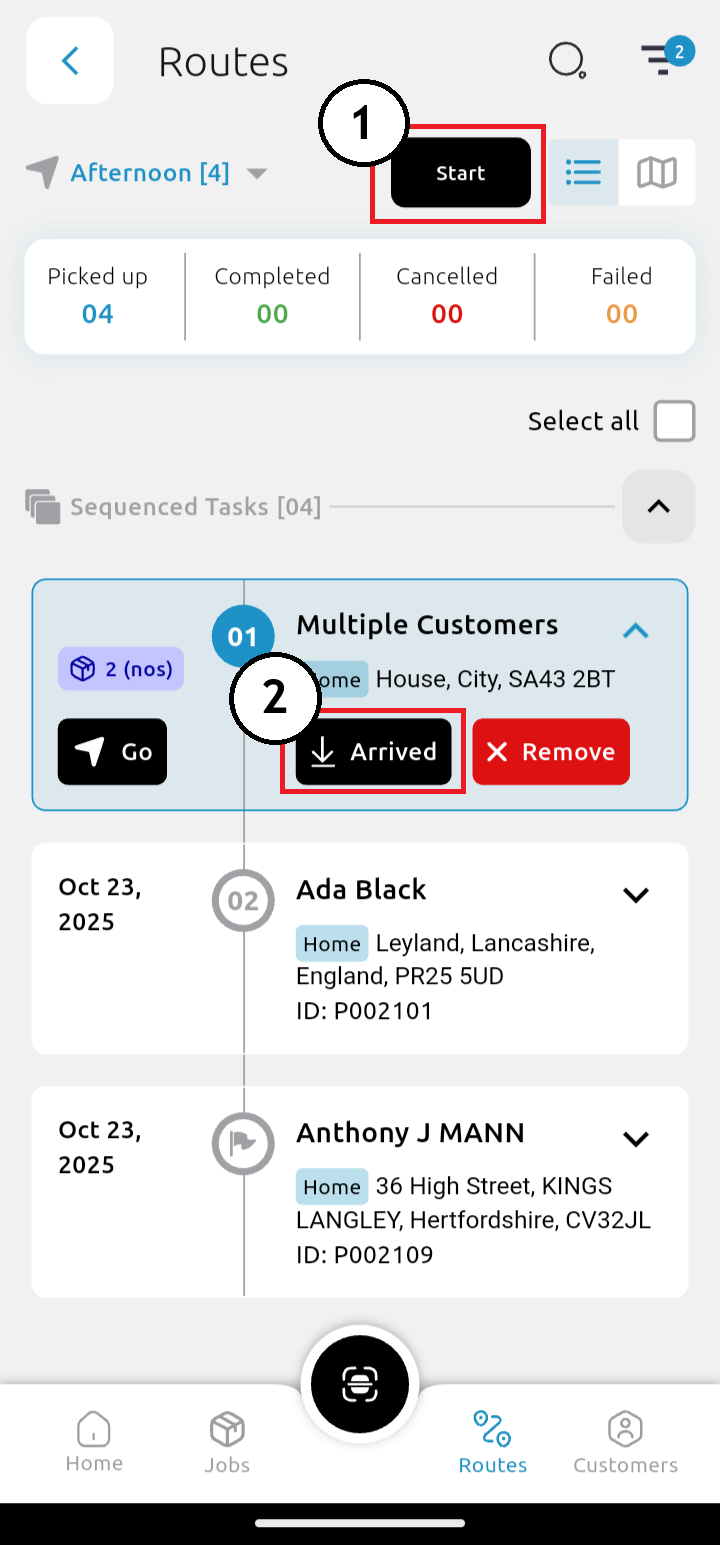
1. Once you are ready to leave the starting location and begin making deliveries, tap Start
2. Once at the delivery location, tap Arrived.
3. Scan the package (optional; press Skip if you want to skip this step)
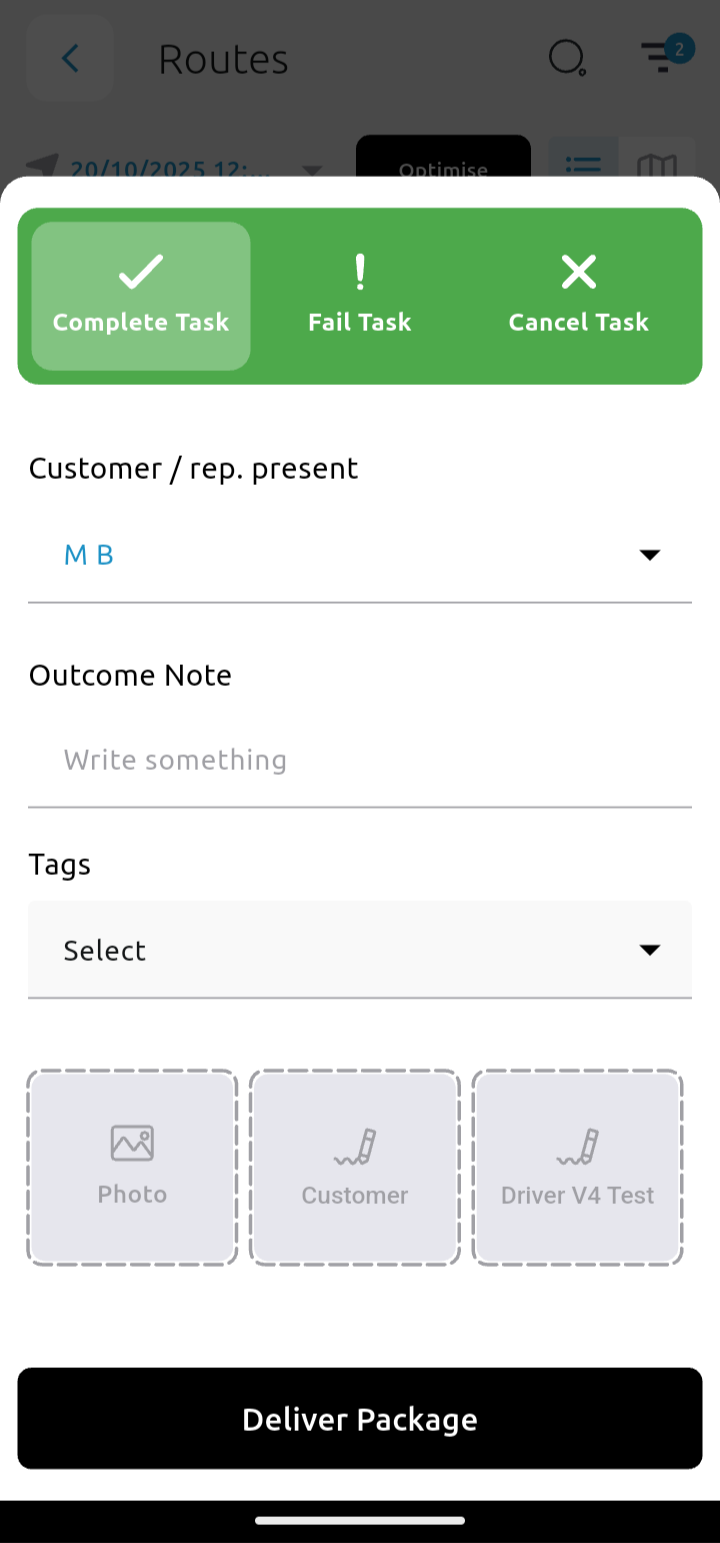
4. Select Complete, Fail or Cancel. You have options to add tags, an outcome note, take a photo, get a customer signature or record your own signature here.
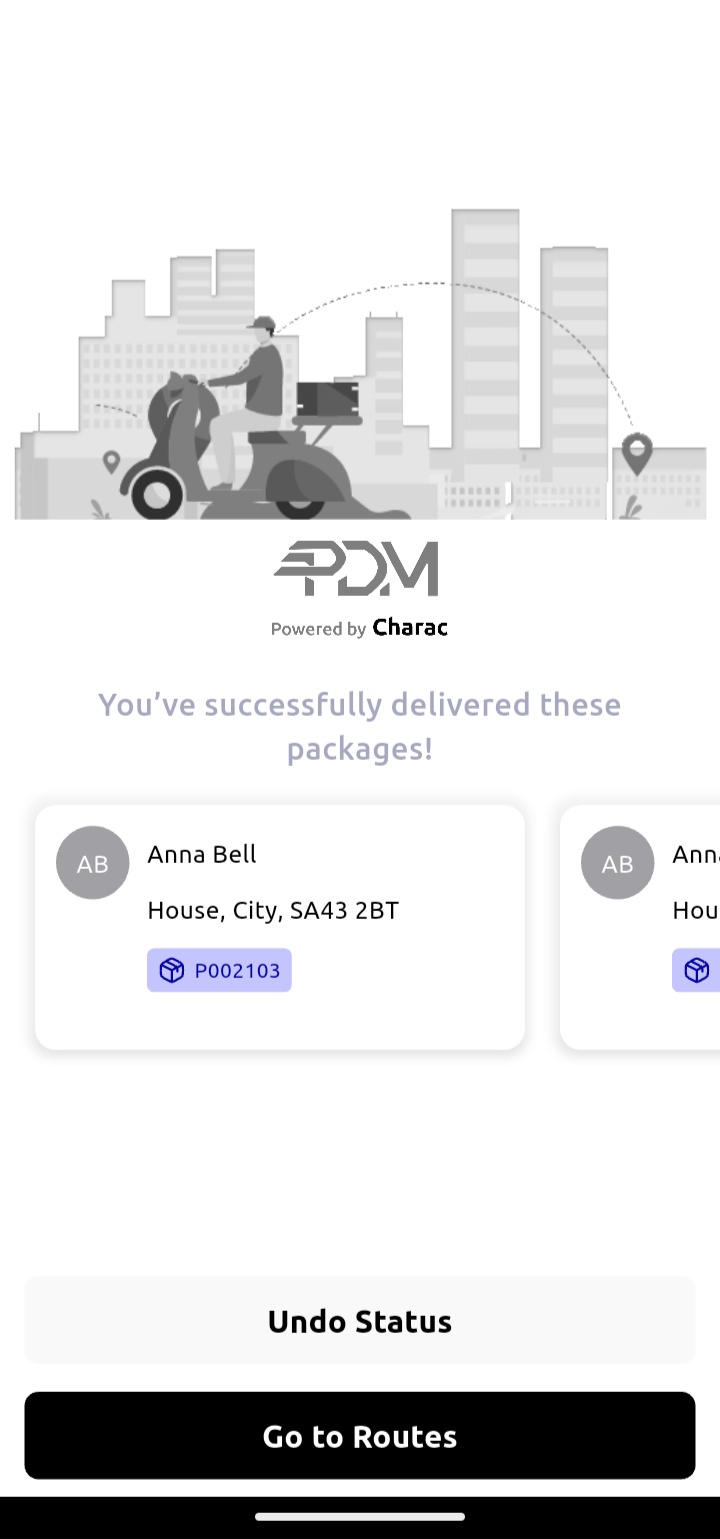
5. Tap Deliver Package
6. Tap Go to Routes to view the next delivery in the list
7. Once all deliveries are attempted, tap Finish Route.